How to Discontinue a Product
You may find you are in the position you want to discontinue a product you order from a supplier. This guide talks you through how to delete any unwanted variations, while leaving any items you have instock to be sold off the peg.
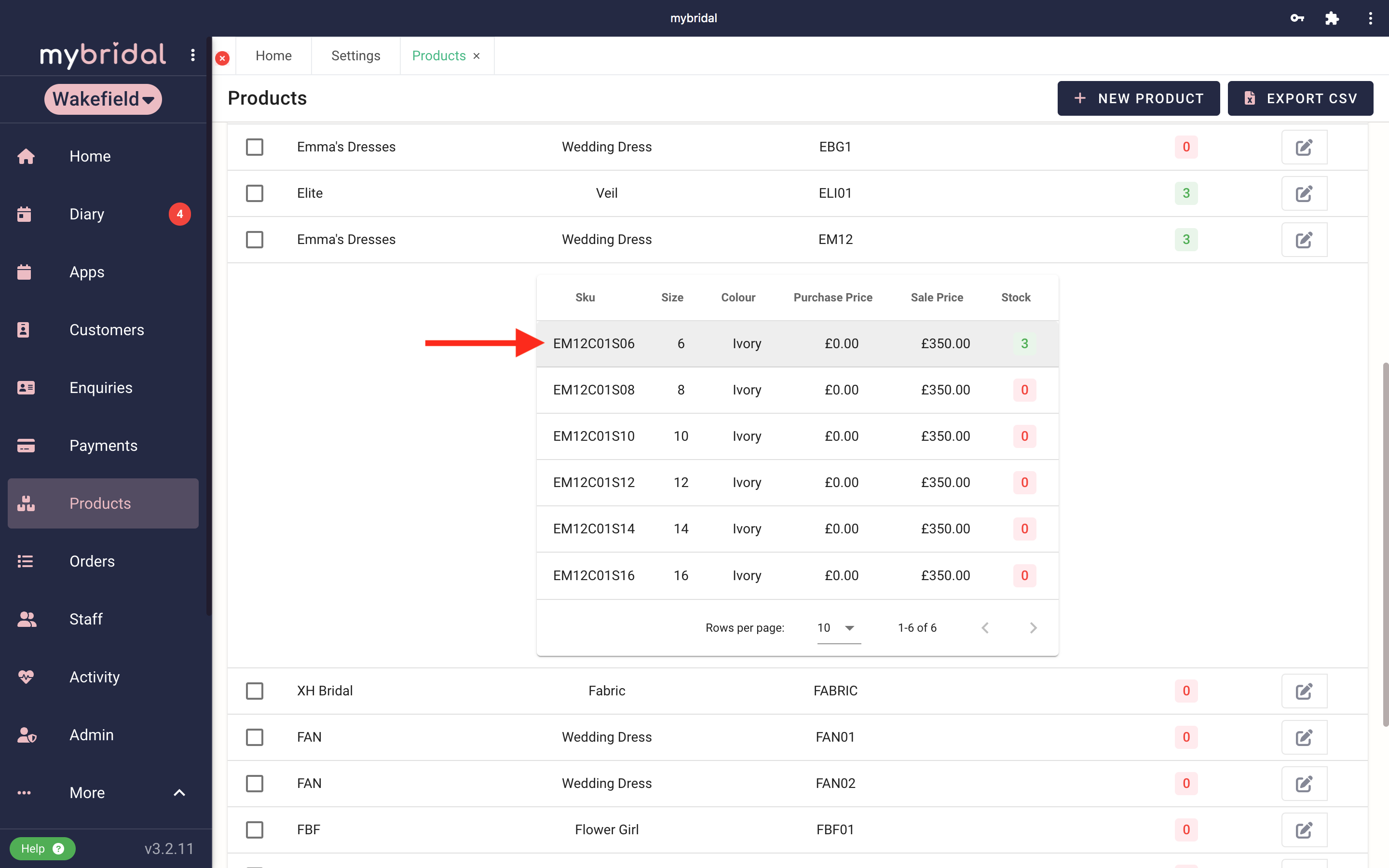
- Click on the product you want to update then click any of the variations to open up the product.
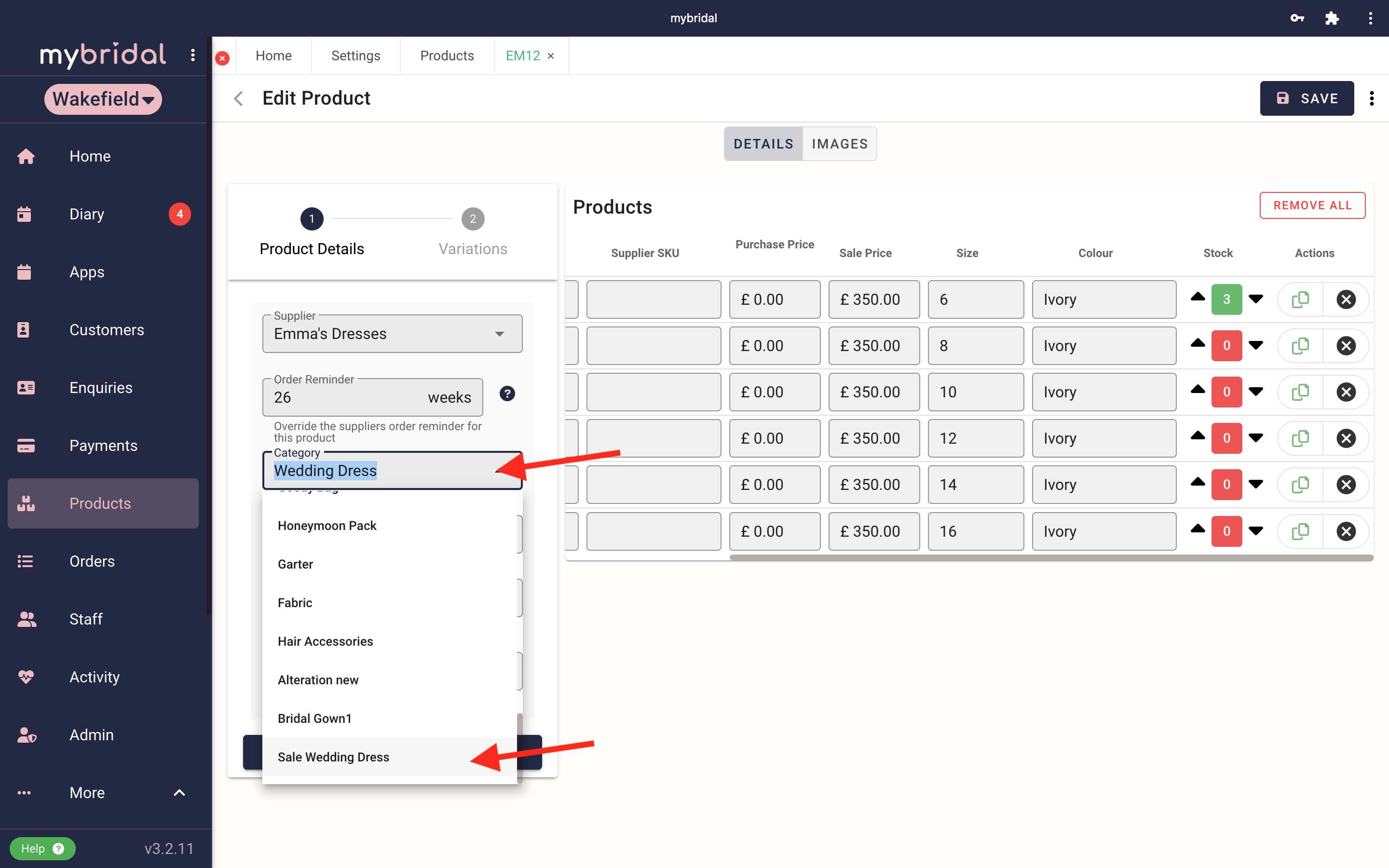
- Change the category if you need too. Ignore this stage if you do not need to change categories. You may want to change for example from Bridal Gowns to Sale Bridal Gowns. You can do this by clicking on category and choosing your sale dress option from the drop downs.
Note: If you want to create a new category you can click the blue + button to do this when you click on the category drop down.
- Scroll over so you can see the end of the variations where the stock count it. You can swipe or use the scroll bar pictured
- Press the 'X' button to delete any of the variations you no longer want. Repeat until you have deleted all the unwanted variations and are just left with any in stock items you want to keep.
- Hit ‘Save’ (arrow 1) and you will see the update saying ‘Updated Product Successfully’. Once you have done this you can close the product window by pressing the small x (arrow 2) and you will be able to then see your updated product in the products list. You can click on it again to double check all the details are now updated and correct.
Updated on: 29/10/2025
Thank you!