How to Create a Custom Form
Learn how to create a custom booking and enquiry form
This guide will talk you through how to customise forms such as the enquiry form or the booking form used on the online booking system. Follow the steps or scroll to step 4 for a video tutorial with time stamps.
1. Find Forms
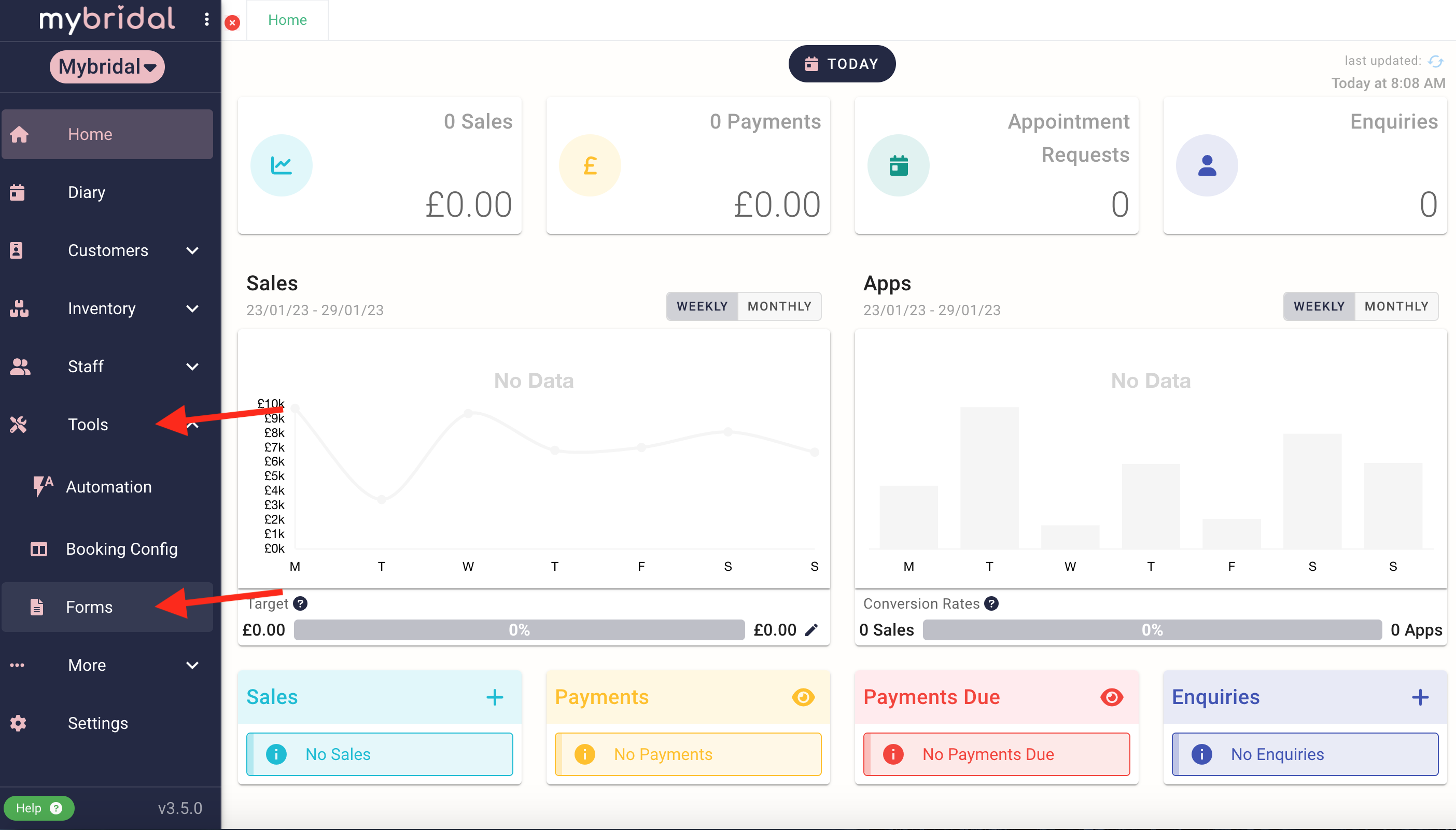
You can access the forms by clicking on 'Tools' then 'Forms' on the mybridal sidebar.
2. Forms Landing Page
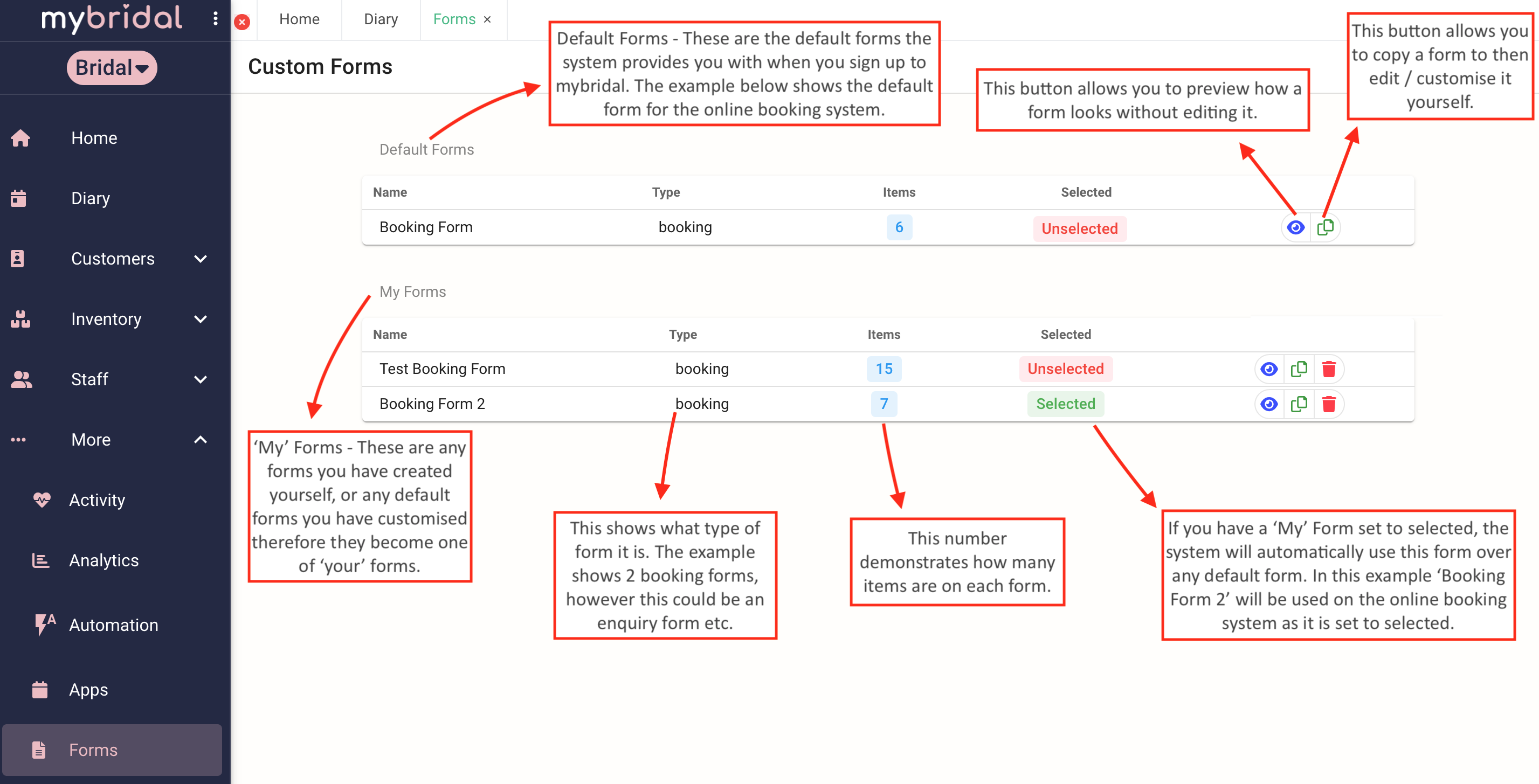
Once on the forms page you may see something like the image below. You will initially only have 'default' forms, however as you customise the defaults you will start to see forms saving in 'My Forms'. To create your own custom form you can click the copy button on a default to start customising an existing form. Currently you can edit both the booking and the enquiry form. The booking form is the form used by your brides when they book an appointment on your website and the enquiry form is a second form that can be used to ask extra questions once a booking is made. You can find more information about enquiry forms here.
3. The Form Editor Editor
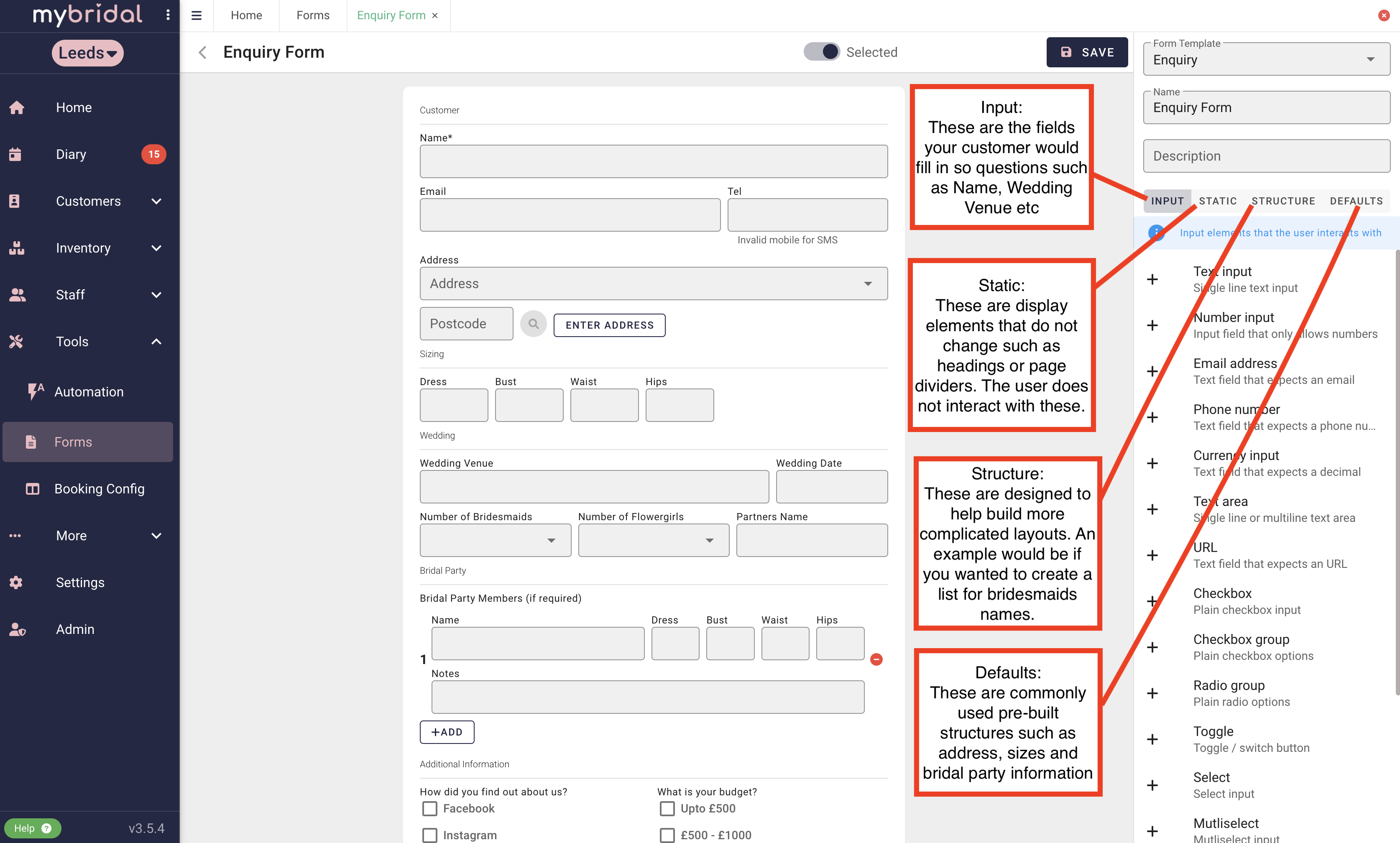
There are several different tabs on the editor which allow you to add different things to your form. The image below helps to explain what each tab does. The tab you will likely use the most is the 'input' tab. The video help guide in step 4 then talks about how to customise your form in greater detail.
4. Video Help Guide
The video below will talk through exactly how to build your custom form and edit the fields to suit your needs.
00:00 - Introduction to custom forms
00:49 - How to set required fields
02:30 - How to add a heading
03.25 - How to re-label exiting fields
04:00 - Explanation of what different inputs are
05.50 - How to set the width of an element
08:17 - How to create a draft / make your form live
5. Where is the information I have gathered on my form?
The information gathered on your custom enquiry form can be found by visiting customers > enquiries and then searching for your customer and clicking on their enquiry form and clicking 'info', you will be able to see all the data. You can also view an enquiry form when it has been completed by clicking on the button in the appointment pop up.
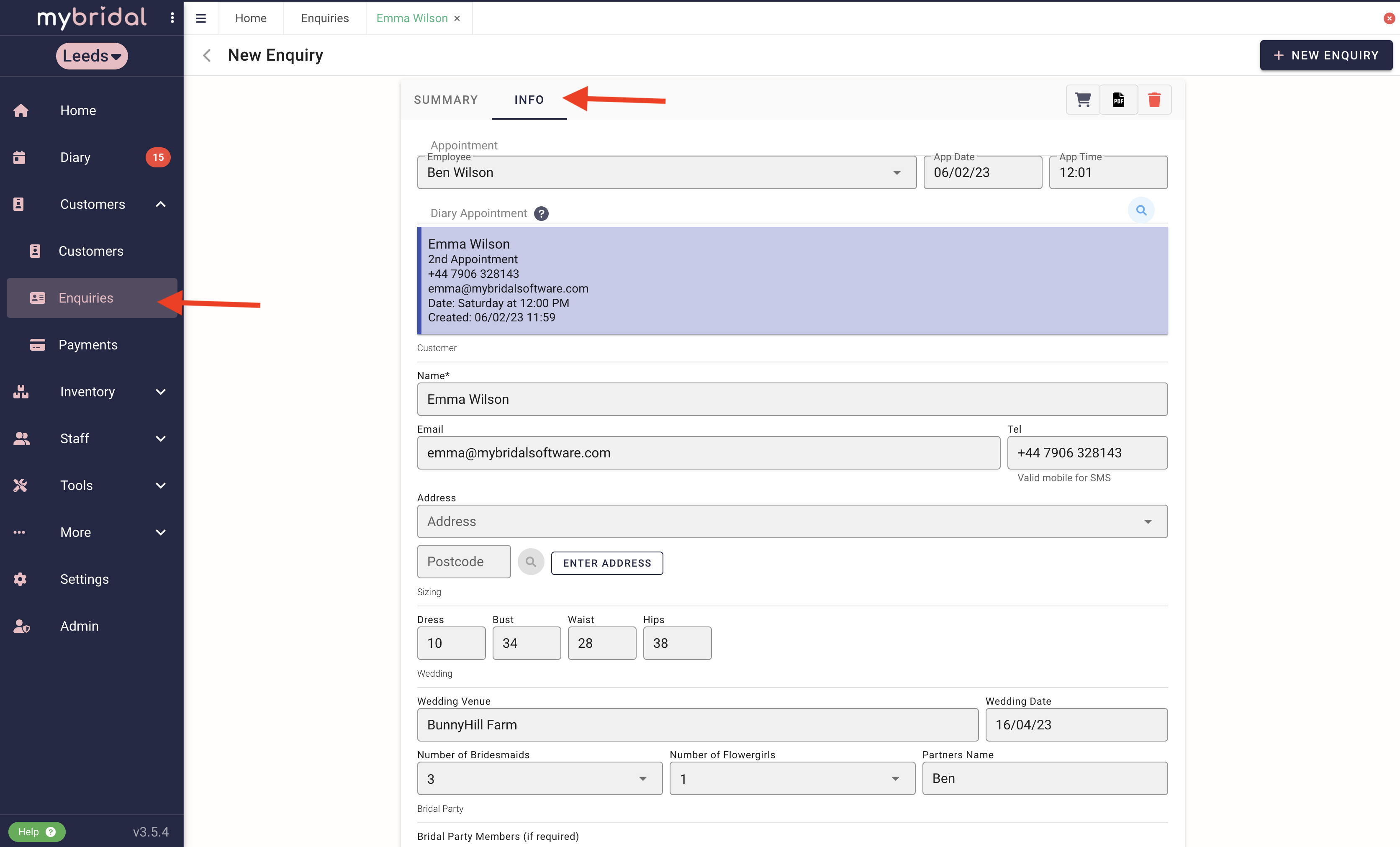
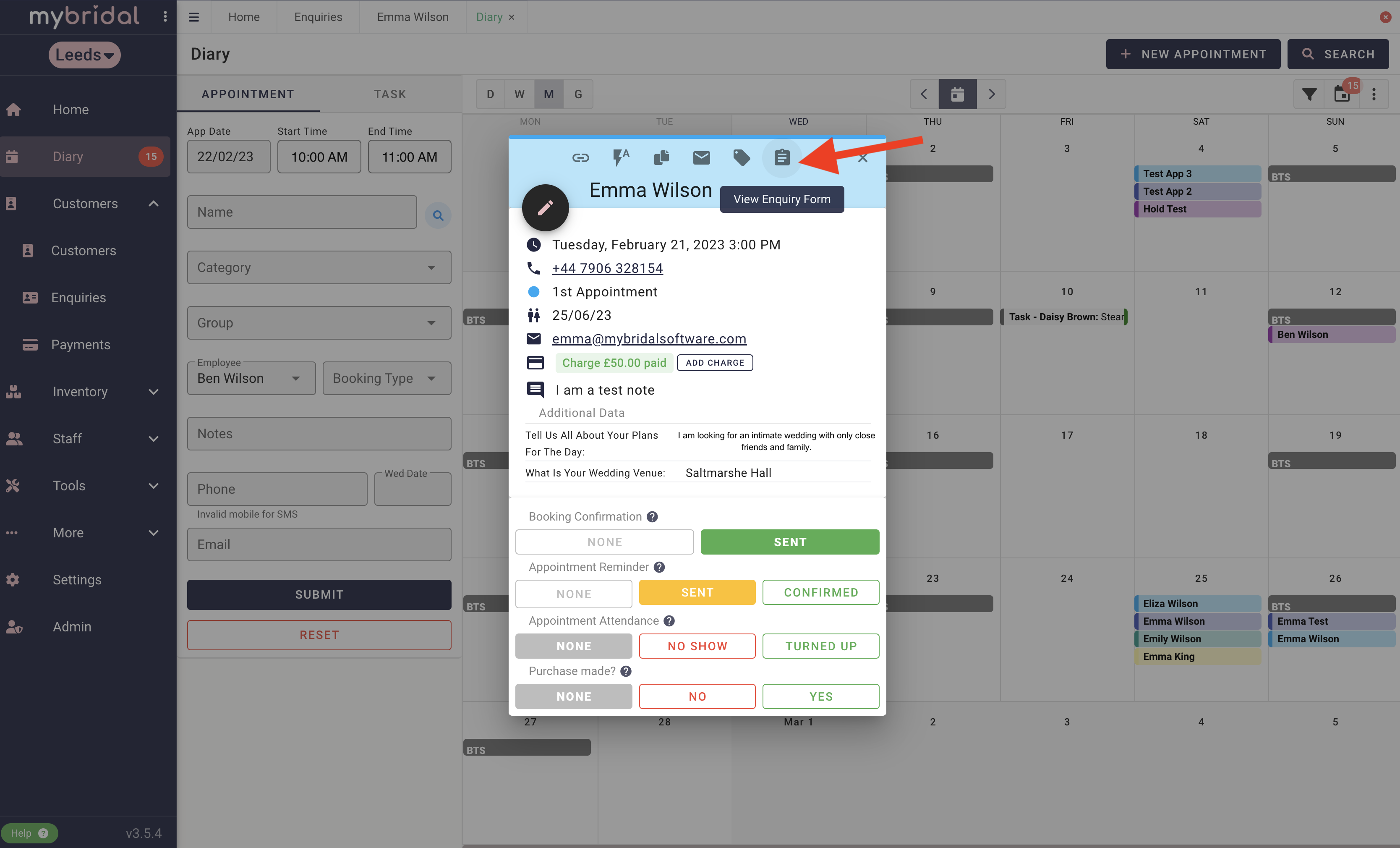
The images below show the information gathered on the booking format the time of booking, followed by the appointment pop up which shows where this information is stored.
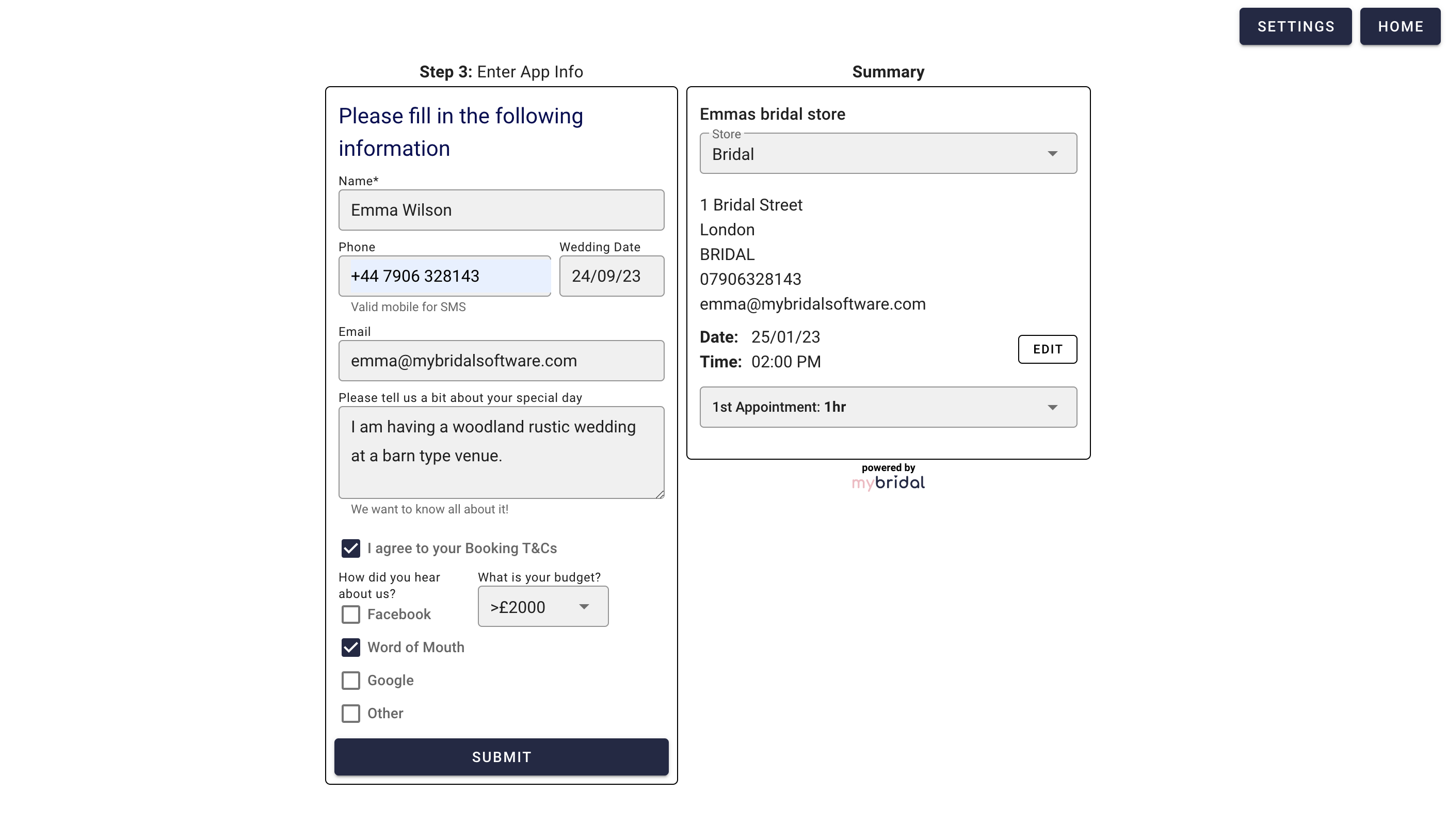
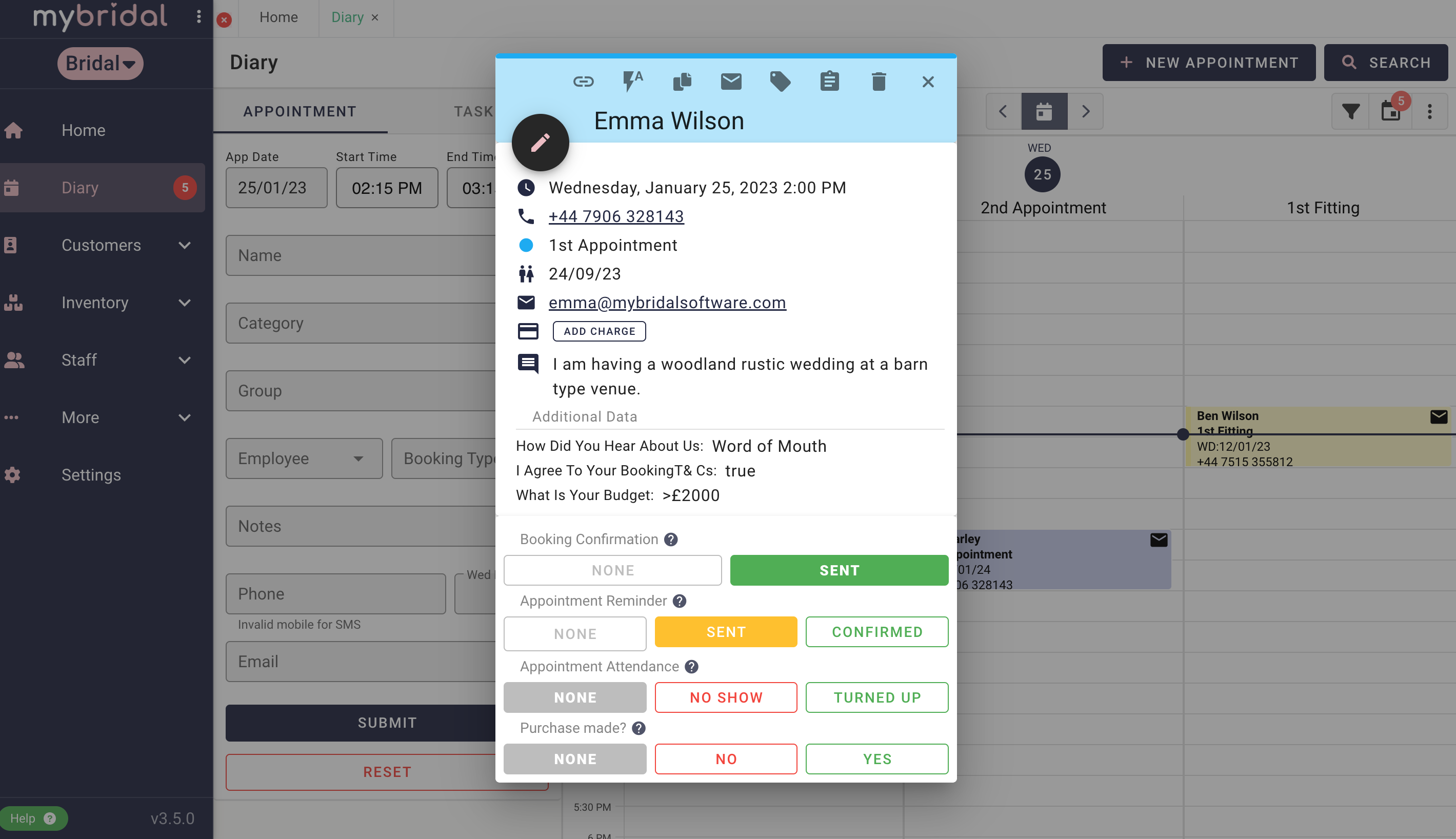
Updated on: 29/10/2025
Thank you!